
Save path, backup, and recovery guide
Gothic 1 Remake Save Location and Backup Guide
On Windows, start with %LOCALAPPDATA%\G1R\Saved\SaveGames. That is the practical place to check for your local Gothic 1 Remake saves before installing a mod, testing a save editor, or troubleshooting a crash. Copy the whole folder first, keep the untouched copy outside the game directory, and only then change files.
Reviewed August 10, 2026 · Windows PC guide
Where are Gothic 1 Remake save files stored?
The first path to check is %LOCALAPPDATA%\G1R\Saved\SaveGames. You can open it without guessing your Windows user name: press Win + R, paste the path, and confirm. In a normal installation, the folder contains the local save data created by the game. The exact file names and slot numbers can change as you create or remove saves, so copy the folder rather than relying on one guessed file name.
If Windows says the path does not exist, start the game without mods, load into a new or existing profile, make one manual save, quit normally, and check again. A first launch, a failed save, a different Windows account, or a cloud-only recovery state can leave the folder looking different from another player's setup. The path is a starting point for investigation, not a reason to delete other files.
- Use the Run dialog so hidden AppData folders do not confuse the search.
- Look for the folder after creating a fresh manual save on a clean profile.
- Copy the complete SaveGames folder before changing a slot or installing a tool.
- Keep the original game and save paths unchanged until the backup opens successfully.
Do not confuse the Steam install folder with the live save folder
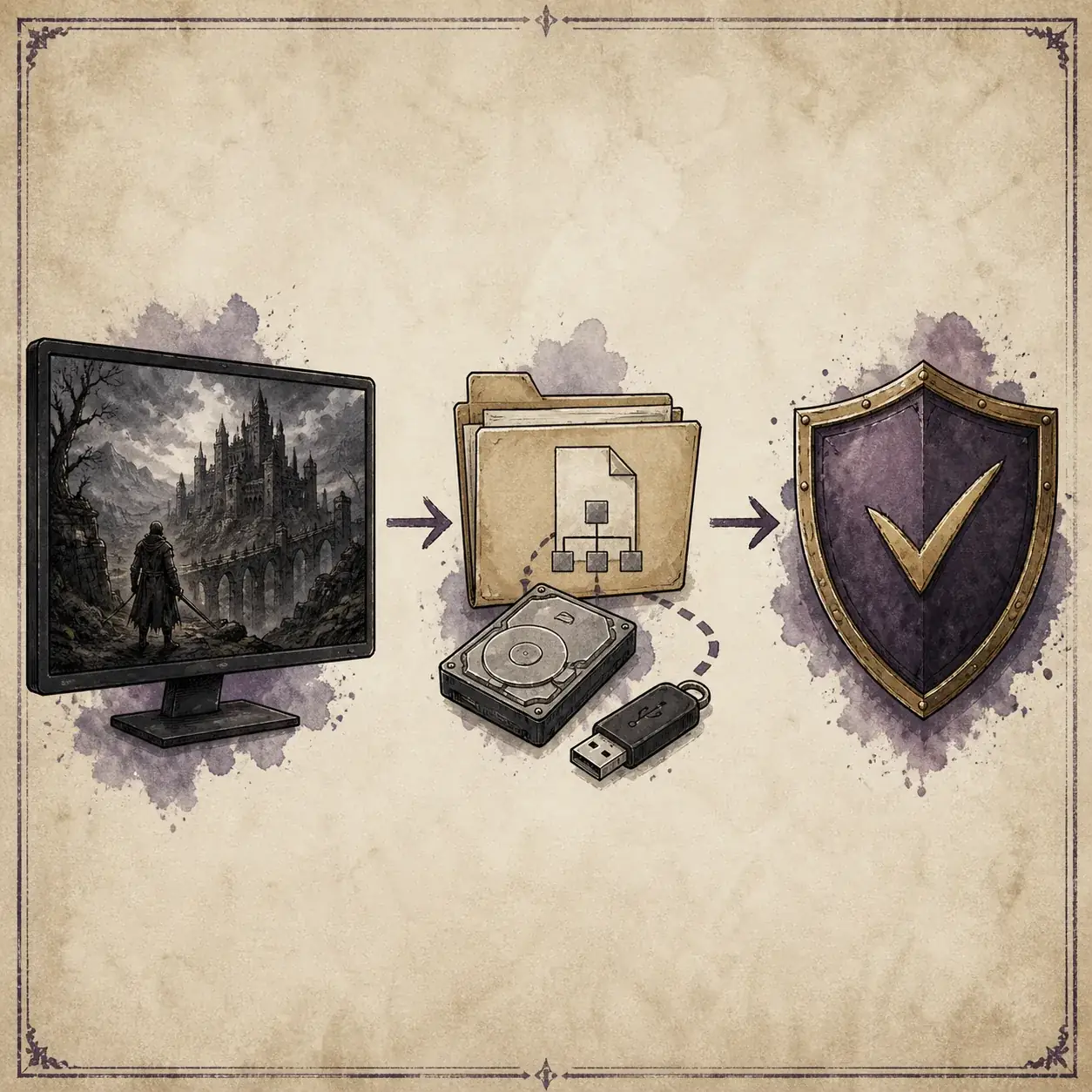
The Steam installation directory is useful for game binaries, configuration files, and mod deployment, but it is not automatically the place where the live saves are stored. Looking only under Steam\steamapps\common\Gothic 1 Remake can lead to a false conclusion when the local save folder is under AppData. A Steam Cloud file such as steam_autocloud.vdf is also not a replacement for a readable manual backup.
Steam Cloud adds another recovery layer, not a reason to skip local copies. After a crash or a machine change, compare the local folder with the cloud state before accepting a sync prompt that could replace the newer files. If the game opens with an older slot, close it without saving over the slot, preserve the current local folder, and then investigate the cloud copy.
| What you found | What it usually means | Safer next step |
|---|---|---|
| %LOCALAPPDATA%\G1R\Saved\SaveGames | Local save data is likely here | Copy the entire folder before testing |
| Steam\steamapps\common\Gothic 1 Remake | Game or mod installation files | Do not assume it contains the active saves |
| steam_autocloud.vdf | Steam Cloud bookkeeping | Keep it, but do not treat it as the editable save |
| An empty or missing folder | No save was created in this profile, or the path/account differs | Launch clean, create one save, and check again |
How to back up saves before installing a mod
A useful backup is a copy you can identify and restore without guessing. Close the game, copy the full SaveGames folder to a location outside the game directory, and name the copy with the date plus the active game state, such as before-mod-test-2026-08-10. If you use OneDrive, an external drive, or another sync service, keep one offline or versioned copy as well; a mirror that instantly propagates a bad save is not a rollback plan.
Before adding a UE4SS package, a console tool, a save editor, or a gameplay overhaul, also record the game build, the mod source URL, the files changed, and whether the author recommends a new game. A backup protects the data; the note explains which backup belongs to which setup. The installation guide covers the same one-change-at-a-time workflow for mod files and profiles.
- 1Close Gothic 1 Remake
Quit to desktop and wait for Steam Cloud activity to finish before copying files.
- 2Copy the whole folder
Copy SaveGames, not only the slot that looks current, because autosaves and manual slots may be useful for recovery.
- 3Name the backup
Include the date, game build if known, and a short note such as clean, before-UE4SS, or before-editor.
- 4Test the copy
Open the backup location and confirm that files exist before you edit the original or install a new mod.
What to do when a save is missing or suddenly fails
First separate a missing file from a save that exists but will not load. If the folder is empty, check the Windows account, create one clean save, and search only the relevant G1R folder rather than downloading an unknown fixer. If the slot is present but crashes, preserve it, copy it to a diagnostic folder, and test a clean profile before removing files. A mod can expose a problem in a save without being the only possible cause.
For a post-update problem, keep the failed copy untouched and compare it with the last known-good backup. Remove the newest mod or framework only after recording its source and deployment path. Do not keep saving into the damaged slot while testing. If the clean game loads the backup but the modded profile does not, the next step belongs in the mods-not-working checklist, not in a random save repair download.
- Preserve the failing folder before attempting a restore.
- Test a copied save with the clean game and the same Windows account.
- Compare game build, mod list, loader, and deployment path before blaming the save.
- Restore the last known-good folder only after closing the game and preserving the newer files.
Should you use a Gothic 1 Remake save editor?
A save editor can be useful for inspection or a narrowly documented repair, but it changes the risk level. The Similarweb keyword data shows meaningful interest in save-editor searches, yet the dominant intent is finding or using an external tool rather than reading a general mod guide. This page therefore treats an editor as an optional recovery step, not as a download recommendation. Keep the untouched backup, work on a duplicate, and read the author's current release notes before opening a save.
The public Gothic Remake Savegame Editor repository is a verifiable project source, but a repository page is not proof that every build is compatible with every game patch. Check the project instructions, supported format, release date, and reported limitations. Never replace your only save with an edited file and never call a third-party executable safe merely because a search result ranks it.
| Situation | Use an editor? | Lower-risk choice |
|---|---|---|
| You only need a backup | No | Copy and label the original folder |
| A slot is missing after a failed mod test | Not first | Restore the last known-good copy and test clean |
| A documented quest or value repair is necessary | Maybe, on a duplicate | Read the current author notes and keep the original |
| A download promises universal fixes | No | Use the official game files and verified project sources |
A short recovery checklist
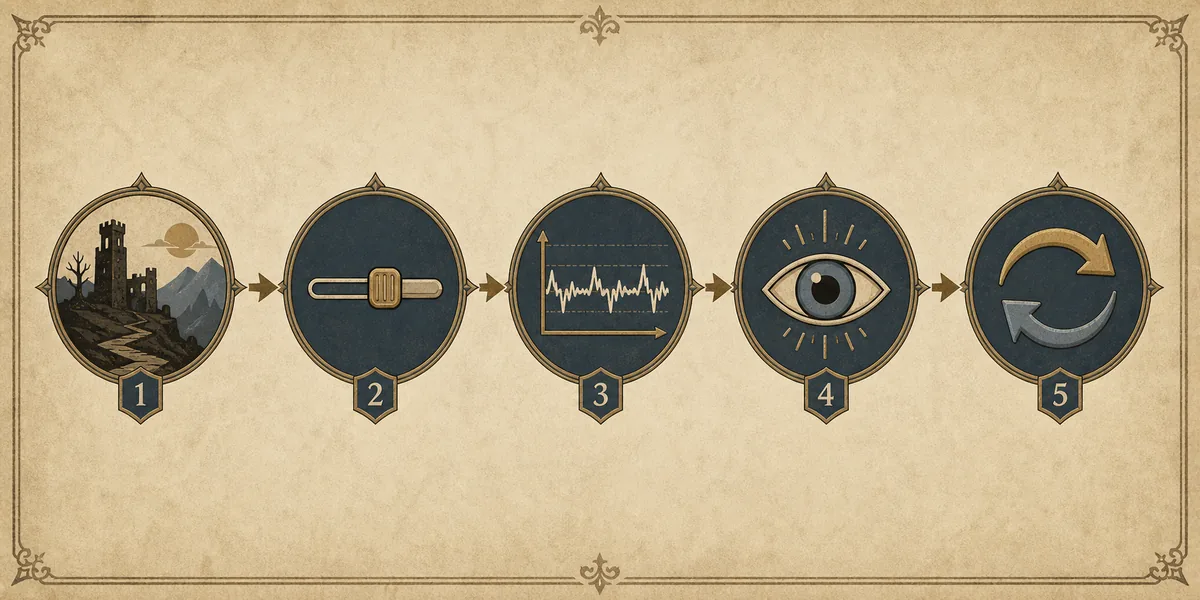
When a save problem appears, slow the process down. Write down whether the failure happens before the menu, when loading one slot, after entering a specific area, or only with a mod profile. That symptom boundary prevents a generic reinstall from destroying useful evidence. The same discipline also makes a report to a mod author more actionable.
After recovery, create a new named backup rather than overwriting the old one. Launch the game, load the restored slot, travel to another area, perform the action that previously failed, save to a new slot, quit, and load it again. If the new slot works, keep both the restored copy and the new post-recovery copy until the setup has survived another session.
- Stop saving over the only copy when a load or crash problem appears.
- Record the exact slot, game build, mod profile, and first failing action.
- Restore to a new test slot when possible, then relaunch before deleting anything.
- Keep the clean backup until the repaired setup survives a second launch.
Gothic 1 Remake Save Location FAQ
What is the Gothic 1 Remake save location on Windows?
Start with %LOCALAPPDATA%\G1R\Saved\SaveGames. Open it with Win + R, and create one clean manual save first if the folder does not exist yet.
Are Gothic 1 Remake saves inside the Steam install folder?
Do not assume so. The Steam folder can contain the game and mod files, while local saves are normally checked under the AppData G1R folder. Preserve any Steam Cloud bookkeeping files and verify the live save path before deleting anything.
Should I back up saves before installing Gothic 1 Remake mods?
Yes. Close the game, copy the entire SaveGames folder outside the game directory, label the copy, and keep the original until the modded profile survives testing.
Can I use a save editor to repair a Gothic 1 Remake save?
Possibly, but only on a duplicate after preserving the untouched original. Confirm the editor's current project instructions and game-build support; do not treat an unknown download as a safe universal repair.
What should I do if the save folder is missing?
Check the Windows account, launch the clean game, create one manual save, quit normally, and check the AppData path again. If it remains missing, preserve logs and avoid downloading random save-fix executables.
Sources and verification notes
- Official Gothic 1 Remake Steam page — First-party game and platform context; it is not a save-path reference.
- Steam Community save-location discussion — Community evidence for separating the local SaveGames path from Steam Cloud files; verify on your own profile.
- Gothic Remake Savegame Editor on GitHub — Project source checked for the optional editor discussion; current compatibility remains the author's responsibility.