
Official PC baseline and compatibility check
Gothic 1 Remake System Requirements: Can You Run It?
The official Gothic 1 Remake system requirements are demanding enough that the sensible first step is to compare your Windows PC before changing graphics settings or installing mods. This guide separates the minimum and recommended tiers, explains the CPU, RAM, GPU, VRAM, DirectX 12, storage, and SSD notes, and gives you a repeatable way to judge a borderline system without promising a universal FPS result.
Reviewed August 6, 2026 · Official Steam requirements checked
Gothic 1 Remake system requirements at a glance
The official Steam store page is the source of truth for the current PC requirement text used here. It lists two tiers rather than a guaranteed frame-rate target: a minimum configuration for starting the game and a recommended configuration for a more comfortable headroom target.
Both tiers require a 64-bit Windows installation, DirectX 12, and 60 GB of available space. The storage note matters: an SSD or better NVMe disk is listed for the minimum tier, while an NVMe disk is recommended for the higher tier. Treat the disk requirement as part of the baseline, not as an optional upgrade after the game begins stuttering.
The table is a comparison aid, not a benchmark. A laptop GPU, power limit, driver, cooling profile, background process, resolution, and patch can change the result even when the named parts look similar on paper.
| Tier | Operating system | Processor | Memory | Graphics and VRAM | Storage and notes |
|---|---|---|---|---|---|
| Minimum | Windows 10 64-bit or Windows 11 64-bit | Intel Core i7-7700K or AMD Ryzen 5 1600X | 16 GB RAM | 8 GB VRAM; AMD RX 6700 XT or NVIDIA GeForce RTX 2070 | 60 GB; SSD or better NVMe disk; DirectX 12 |
| Recommended | Windows 10 64-bit or Windows 11 64-bit | Intel Core i7-7700K or AMD Ryzen 5 3600X | 32 GB RAM | 12 GB VRAM; NVIDIA GeForce RTX 3070 Ti or AMD Radeon RX 6800 XT | 60 GB; NVMe disk recommended; DirectX 12 |
Can I run Gothic 1 Remake on my PC?
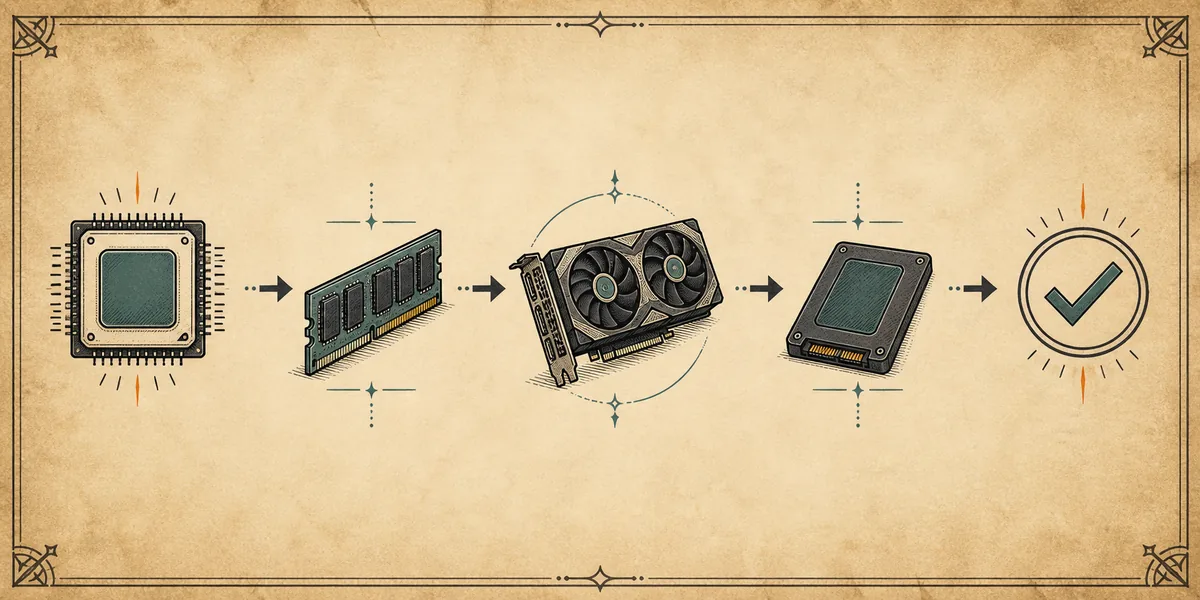
Start by comparing the named parts in order, not by copying a preset from a different PC. Check the exact GPU model and its dedicated VRAM, then the CPU, installed RAM, Windows architecture, and the drive where the game will live. A desktop RTX 2070 and a laptop GPU with a similar name may have different power limits and performance.
If your PC is below the minimum GPU or VRAM tier, expect a meaningful compromise in resolution, effects, texture streaming, or frame pacing. Integrated graphics and shared-memory solutions should be treated as unverified rather than assumed compatible. The official list does not promise that every device with 8 GB of system memory can substitute for an 8 GB VRAM graphics card.
If your parts sit between the two tiers, the honest answer is usually ‘possibly, with testing.’ Use a clean install, a repeatable outdoor and indoor scene, and a stable frame-time check before adding ReShade, a visual package, or a gameplay mod. That keeps a hardware limit separate from a broken mod deployment.
- 1Identify the exact GPU
Record the full model, dedicated VRAM, driver, and laptop or desktop power profile. Do not use only a product family name.
- 2Compare CPU and RAM
Check the processor model and installed memory against the minimum and recommended rows. Close background workloads before judging a borderline result.
- 3Check Windows and DirectX
Confirm a 64-bit Windows 10 or Windows 11 installation and DirectX 12 support. A similar-looking older setup is not the same baseline.
- 4Verify the game drive
Leave at least 60 GB available and prefer an SSD or NVMe disk. Keep additional space for shader data, updates, saves, and temporary files.
Minimum vs recommended: what changes?
The largest visible difference between the two tiers is not simply a higher preset. Recommended play doubles the listed system memory from 16 GB to 32 GB and raises the graphics target from 8 GB to 12 GB of VRAM. That extra headroom can matter for large outdoor views, texture streaming, background applications, and keeping a stable frame-time budget while the game loads content.
The CPU recommendation changes from a Ryzen 5 1600X to a Ryzen 5 3600X on the AMD side, while the Intel model remains the i7-7700K in the official listing. This is a reminder that a GPU upgrade alone does not guarantee smoother traversal or busy-scene performance. CPU scheduling, thermals, and background load can still be the limiting factor.
Meeting the minimum does not mean that every setting should be left on high, and meeting the recommended tier does not guarantee a fixed FPS number. Use the tiers to choose a starting test, then adjust resolution, upscaling, shadows, volumetrics, textures, and frame limits one at a time.
- 8 GB of VRAM is the listed minimum graphics target; shared system memory is not automatically equivalent.
- 16 GB RAM is the listed minimum, while 32 GB gives more room for the game and background tasks.
- 60 GB is the listed capacity, but free space beyond that helps updates and temporary files complete safely.
- An SSD or NVMe disk is part of the official storage guidance; it does not repair a CPU or GPU bottleneck.
- DirectX 12 and a 64-bit Windows installation are baseline requirements, not optional graphics settings.
What the CPU, RAM, GPU, VRAM, and SSD notes mean
CPU is the processor work behind simulation, streaming, draw-call preparation, and other tasks that can affect busy scenes. When GPU utilization is low but frame time remains uneven, lowering image quality may not address the real constraint. Compare the same route with the same background workload before deciding that a Mod is needed.
RAM is system memory. VRAM is the dedicated memory available to the graphics processor. They are related but not interchangeable: a PC can have 32 GB of RAM and still struggle when the GPU does not meet the listed VRAM target. This is why the table keeps RAM and graphics memory in separate columns.
An SSD or NVMe requirement is mainly about access and streaming behavior. A fast drive can reduce loading and storage-related hitching, but it cannot turn an entry-level GPU into an RTX 2070-class part. Keep the storage check in its own diagnostic step.
When a component is close to the line, report the uncertainty honestly. The useful result is a repeatable test with the exact resolution, upscaling mode, frame cap, driver, scene, and active background applications recorded.
| Component | What to compare | What a mismatch may look like |
|---|---|---|
| CPU | Model, cores, clocks, thermals, background load | Uneven frame time in busy scenes while GPU headroom remains |
| RAM | Installed system memory and free memory during play | Streaming pressure, paging, or instability when other apps are open |
| GPU / VRAM | Exact GPU, dedicated VRAM, driver, power profile | Low FPS, reduced resolution headroom, texture or streaming pressure |
| SSD / NVMe | Drive type, free space, health, and game location | Long loads or storage-related hitching; not a replacement for GPU power |
How the requirements affect settings and mods
Check the clean game's hardware baseline before installing a performance Mod. The Gothic 1 Remake best-settings guide helps choose a controlled graphics starting point, while the performance Mod guide separates preset changes from CPU limits, driver issues, dependencies, and conflicts.
A Mod cannot lower the official base-game requirement in a predictable way. A lightweight configuration may reduce a graphics cost, but it can also change image quality, frame pacing, or compatibility. Measure one setting group first, then test a Mod as a separate variable with a copied save and a rollback path.
If the clean game is already unstable, do not treat a Mod as the first fix. Record the PC specification, driver, game build, error behavior, and storage location, then use the mods-not-working checklist only after the base game has been tested without extra files.

Borderline hardware: check this before installing mods
A borderline PC needs a controlled experiment, not a long list of launch options. Start with the clean game and one copied save. Pick one outdoor route and one interior, let loading and shader compilation settle, and repeat the same movement path. Record both average performance and visible stutter.
If the GPU is fully loaded, test resolution or moderate upscaling before lowering every quality option. If the GPU has room but frame time is uneven, inspect CPU load, background programs, storage, drivers, and game files. If textures stream late, check VRAM and the drive before adding a visual package.
Only after the base profile is repeatable should you test a performance preset, ReShade, loader, or content Mod. Keep one change active at a time and name the profile with the hardware, driver, resolution, and date. This turns a vague ‘can I run it?’ question into evidence you can revisit after a patch.
- 1Clean the variables
Disable Mods, ReShade, overlays, and capture tools. Verify the base game state and load a copied save.
- 2Use two representative scenes
Compare one outdoor view with distance and one interior or busy area. Use the same route every time.
- 3Change one layer
Test resolution, upscaling, one expensive effect, or a frame cap before changing a complete preset.
- 4Keep evidence or roll back
Save the profile only when the result repeats and the visual cost is acceptable; otherwise restore the last working state.
- Do not infer stable performance from a menu, loading screen, or one short benchmark pass.
- Do not use an unknown executable advertised as a universal FPS fix.
- Do not install a Mod to solve a problem that appears in the clean game until the base diagnosis is complete.
- After an official update, retest the clean baseline before restoring an older tuning profile.
What to recheck after a game update
A system-requirements page is a baseline, not a promise that every future patch, driver, or Mod will behave identically. When the game changes, verify the official Steam requirement text, launch the clean game, and repeat the same route before judging an old preset. Keep the check date visible in your notes so a later result has context.
If your PC barely meets the minimum tier, leave more headroom for updates, shader caches, free storage, and background applications. If your PC is comfortably above the recommended tier but the game still stutters, investigate the specific frame-time or file problem instead of assuming that more hardware is the only answer.
- Recheck the official source and the current game build.
- Repeat the clean outdoor and indoor test with the same resolution and frame cap.
- Confirm the game drive still has free space for updates and temporary files.
- Restore Mods and visual changes one at a time after the baseline passes.
Gothic 1 Remake System Requirements FAQ
What are the minimum Gothic 1 Remake system requirements?
The official Steam listing names 64-bit Windows 10 or 11, an Intel Core i7-7700K or AMD Ryzen 5 1600X, 16 GB RAM, an 8 GB VRAM RX 6700 XT or RTX 2070-class GPU, DirectX 12, 60 GB of space, and an SSD or better NVMe disk. Treat that as a starting baseline, not a guaranteed high-preset or fixed-FPS result.
What are the recommended requirements for Gothic 1 Remake?
The recommended tier keeps 64-bit Windows, DirectX 12, and 60 GB, but raises the AMD CPU to a Ryzen 5 3600X, system memory to 32 GB, and graphics to a 12 GB VRAM RTX 3070 Ti or Radeon RX 6800 XT class. It provides more headroom; it does not guarantee one universal FPS number.
Can I run Gothic 1 Remake with less than 16 GB RAM?
The official minimum lists 16 GB RAM, so a system below that is outside the published baseline. You may be able to launch software on some configurations, but this page cannot responsibly promise stable play, streaming behavior, or a useful Mod margin below the listed requirement.
Will a performance Mod make a PC below the requirements run Gothic 1 Remake?
A configuration or performance Mod may reduce one graphics cost, but it cannot reliably replace the listed CPU, GPU, VRAM, RAM, DirectX, or storage baseline. Test the clean game first and treat every Mod as a separate experiment with a copied save and rollback path.