
Compatibility and conflict guide
Gothic 1 Remake Mod Compatibility Guide
Gothic 1 Remake mod compatibility is easier to judge when you separate content, loaders, paths, profiles, and saves. This guide gives you a repeatable way to decide whether two packages can coexist, which dependency must load first, how to test a conflict without destroying a working setup, and when to split mods into separate profiles.
Reviewed November 5, 2026 - compatibility workflow and source boundaries checked
What Gothic 1 Remake mod compatibility actually means
Compatibility joins a package, a game build, an install path, and every active file. Two mods may be compatible because they touch different systems, conditionally compatible because one must win a documented conflict, or incompatible because they replace the same asset, loader, configuration key, or save data. A green manager status describes installation state; it does not certify the result in game.
Start with the task and the Gothic package type. A pak, UE4SS script, blueprint plugin, ReShade preset, and Engine.ini tweak use different paths. Treat the current README, requirements, and conflict notes as evidence. Keep a clean profile, copy the save folder, and record the build before testing so a wrong path or missing dependency is not mistaken for a conflict.
| Compatibility question | Evidence to collect | Safe first action |
|---|---|---|
| Do the packages change the same system? | Archive tree, mod type, README, conflict notes | Put each package in a separate test profile |
| Does one package require a framework? | Loader name, supported build, exact install path | Install the dependency alone and verify it loads |
| Can the files overwrite each other? | Overlapping filenames, manager conflict view, author order | Choose one documented winner or split the profiles |
| Could the change affect a save? | Save notes and progression changes | Use a copied save and keep the original untouched |
Map Gothic 1 Remake dependencies before you combine mods
Map the Gothic layers before changing the game folder: base game, loader, content package, configuration, and manager. UE4SS or a blueprint loader may provide the runtime a script expects; a pak or preset then adds content. Vortex or G1L can organize profiles and deployment, but neither replaces a framework named by the mod. Manual installation is a placement method, not a universal loader.
Write each relationship plainly: package A needs loader B, package C overlaps package D, or preset E edits the same Engine.ini keys as preset F. A manager can hide a wrong path, inactive profile, failed deployment, or missing dependency. Verify the physical destination when the result disagrees with the README, then use the UE4SS guide and G1L guide for the neighboring tool boundaries.
| Layer | Typical role | Compatibility check |
|---|---|---|
| Base game | Provides the current executable and content | Launch it clean and note the build before testing |
| Framework or loader | Loads scripts, DLLs, or blueprint extensions | Use the exact build and documented executable-relative path |
| Content mod | Adds or replaces pak, texture, movie, or gameplay content | Inspect overlapping files and the author's requirements |
| Configuration preset | Changes Engine.ini or graphics settings | Back up the original and compare keys |
| Manager or launcher | Organizes profiles and deployment | Confirm the active profile and real game path |
Run a controlled Gothic 1 Remake compatibility test
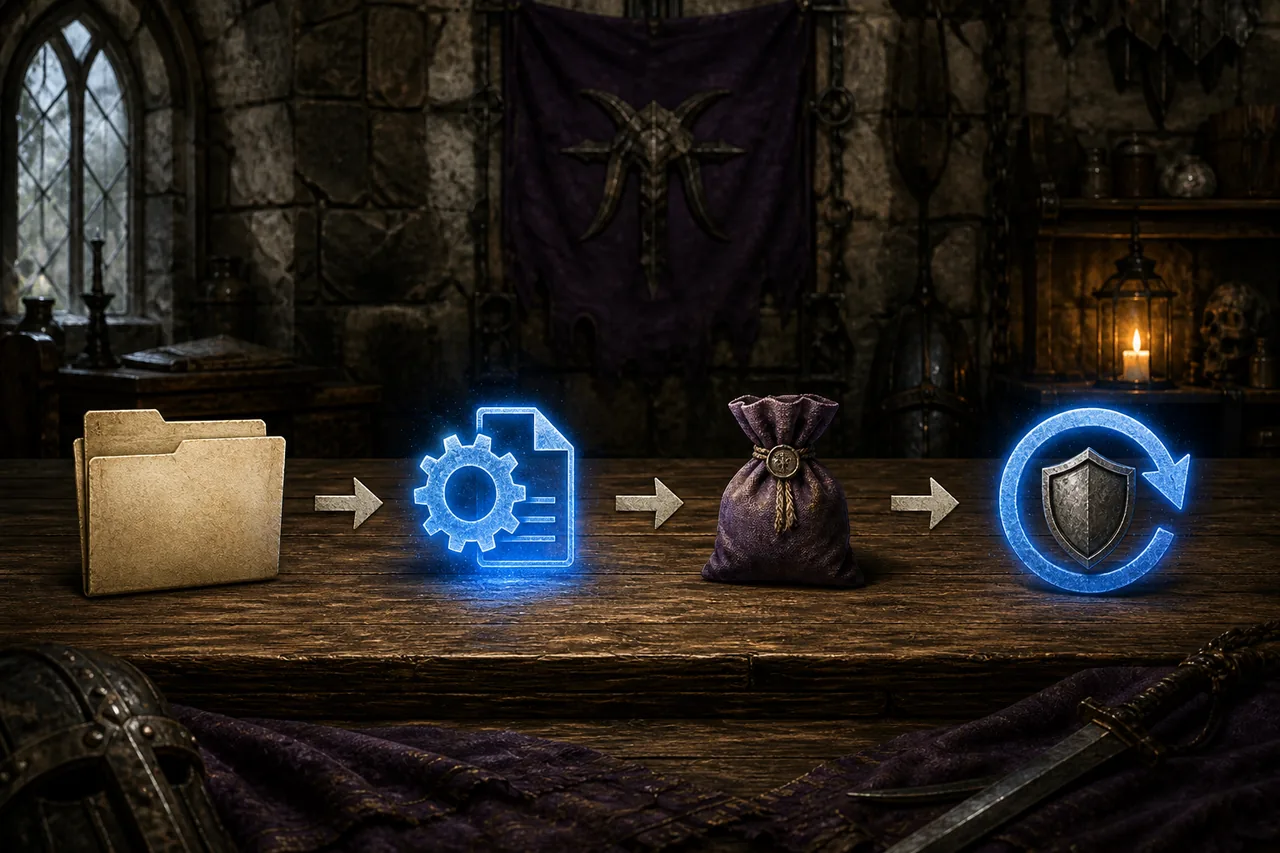
The safest Gothic test changes one layer at a time. Launch the unmodded game, load a normal save, copy the save folder, and note the build and profile before editing files. A clean baseline tells you whether a failure belongs to the base game or the mod stack.
Choose one package with a clear expected result and use the same scene or menu for every comparison. Record the launch, save load, expected change, and exit. If it fails, remove only the newest layer; if it passes, save the profile and add the next dependency.
- 1Record the clean baseline
Launch without mods, note the build, load a normal save, and choose one comparison scene.
- 2Back up saves and configuration
Copy SaveGames and any named configuration file to a location outside the active game directory.
- 3Create a named test profile
Keep a clean profile and a dated test profile, or write down each manual file before installing.
- 4Install one package
Follow the documented path, inspect archive nesting, and add only the dependency the package requires.
- 5Check, keep, or roll back
Repeat the same in-game check, record errors, and disable only the newest layer when the result changes.
- A clean launch fails before any mod is active: repair or verify the base game first.
- The menu opens but the feature is missing: check the active profile, dependency, archive path, and expected test location.
- A save behaves differently after a script test: stop overwriting the original and compare the copy with the clean profile.
- A manager reports success but the game is unchanged: verify deployment and the physical destination.
Make Gothic 1 Remake load-order and conflict decisions
Gothic load order matters only when the game or loader defines an order for the files involved. Do not invent a universal alphabetical order. Compare the exact overlapping path with the author's priority; if neither source explains it, test the packages separately and together and keep the combination only when the expected behavior remains stable.
Ask which file or framework owns the behavior. A manager can show an enabled package while a manual file still wins, or a bundled old loader can replace a shared one. Keep a note with the winner, evidence, test scene, and rollback action. The Vortex guide covers deployment rules; this process also applies to G1L and manual installs.
| Observed overlap | What it may mean | Decision |
|---|---|---|
| Two paks provide the same asset | One package can replace the other | Use an author-supported winner or separate profiles |
| Two presets edit the same key | The last applied value may hide the first | Keep one preset and compare the original config |
| Two loaders provide the same hook | Frameworks can collide or load twice | Follow the named dependency and remove the duplicate |
| Manager and manual files both exist | The physical file may beat the profile state | Choose one owner, inspect the folder, then retest |
| No documented overlap | The relationship is unverified | Test separately and keep a rollback boundary |
Use Gothic 1 Remake profiles, saves, and rollback as compatibility tools
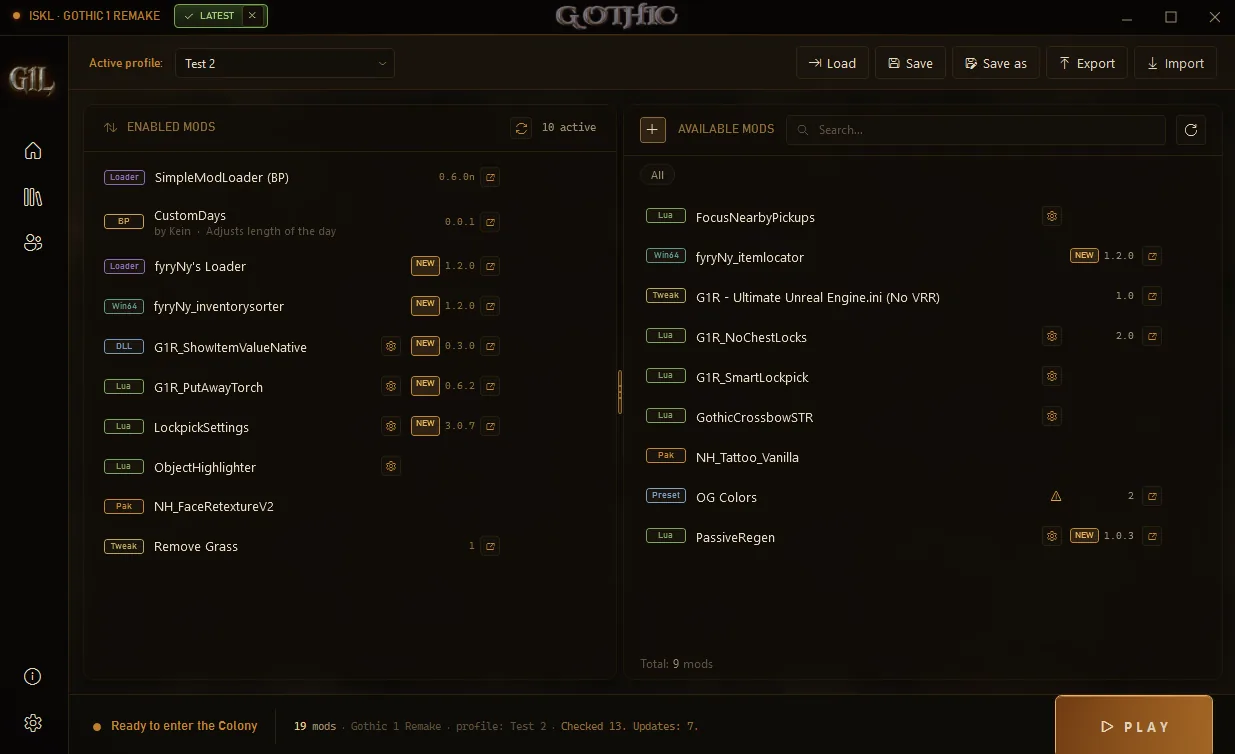
Use a clean Gothic profile for baseline checks, a stable profile for normal play, and a dated test profile for one new package. Name the loader, versions, configuration changes, and save boundary. Vortex users should separate installed, enabled, deployed, and purged states; G1L users should confirm that the selected profile launches the executable. Manual users can keep the same clarity with a folder inventory.
A save is part of compatibility. Scripts, console tools, and gameplay changes can alter progression even when the game launches. Test on a copy, keep the original outside the active folder, and compare local and Steam Cloud copies before restoring. Use the save-location guide and roll back the newest change first.
- Clean profile: base game only, used to prove that the executable and save load correctly.
- Stable profile: the smallest combination that has passed the same in-game test.
- Test profile: one new dependency or mod, a copied save, and a written expected result.
- Rollback record: package, source URL, path, configuration diff, and the file or profile to disable.
- Save boundary: original saves stay untouched and test saves are labeled.
Know the Gothic 1 Remake troubleshooting boundary
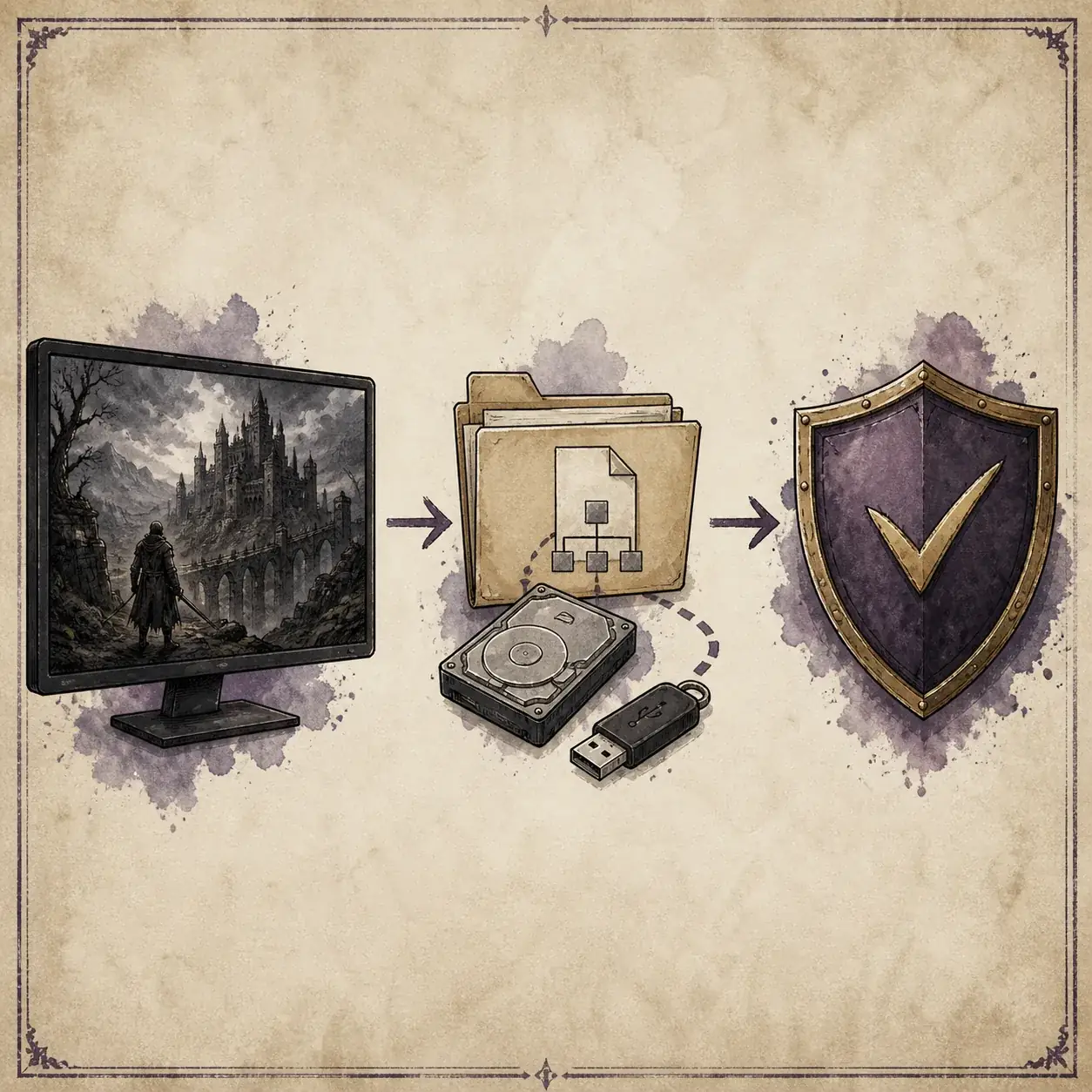
Classify the symptom before calling it a conflict. A crash with no mods points to the base installation, build, drivers, or settings. A package that is ignored points first to type, path, profile, dependency, or build support. A save that fails after a script needs a save boundary before another reinstall.
After a Gothic game update, run the clean baseline, then recheck the author page, loader release, and manager notes. A previous success is not a permanent compatibility promise. Unknown archives, repacks, and mirrors stay out of the stable profile. Use the Mods Not Working guide for symptoms and the performance guide for graphics cost.
- Crash before the menu: disable the newest layer and verify the clean game before touching load order.
- Feature missing: confirm package type, dependency, active profile, physical path, and expected test scene.
- Conflict after an update: retest the clean build, then recheck each author source and loader release.
- Unexpected performance change: separate visual presets and ReShade from compatibility testing.
- No trustworthy source: keep the package out of the stable profile.
Gothic 1 Remake mod compatibility FAQ
How do I check Gothic 1 Remake mod compatibility?
Compare the package type, required loader, game build, destination path, overlapping files, and save risk. Test one change in a named profile with a copied save, then keep or roll back the newest layer based on the same in-game check.
Can I use several Gothic 1 Remake mods together?
Sometimes. Mods that use different systems may coexist, while packages that replace the same asset, loader, or configuration key may need a documented winner or separate profiles. Do not infer compatibility from a manager status or the mod names alone.
What is the safest Gothic 1 Remake mod load order?
There is no universal order. Follow the current author instructions for the exact loader and overlapping files. If no source explains the priority, test packages separately and together, keep a short evidence note, and split the profiles when ownership is unclear.
Does Vortex or G1L prove that a mod is compatible?
No. Installed, enabled, deployed, or visible in a profile describes a manager state. You still need the correct game path, dependency, archive layout, game build, and in-game result. Use the manager to organize a test, not to replace source instructions.
Source boundaries
- G1L official project and releases — Author-maintained project context for a game-specific launcher and profile workflow.
- RE-UE4SS official repository — First-party framework source used to verify that loader requirements remain package-specific.
- Gothic Remake official site — Official game context; it is not a compatibility certificate for third-party mods.