
Framework and loader setup
Gothic 1 Remake UE4SS Guide: Install and Troubleshoot
Gothic 1 Remake UE4SS is a framework used by some mods, console tools, and plugins; it is not a universal replacement for Vortex or for every mod's own installer. Start with the current author release, match its requirements to your game build, place the files relative to the correct executable, and test one change on a copied save before adding more content. This guide explains the boundary between UE4SS, a content mod, BP Mod Loader, G1L, and Vortex so a failed launch is easier to undo.
Reviewed August 16, 2026 · Official UE4SS and G1L source pages checked
What UE4SS does in Gothic 1 Remake (and what it does not)
UE4SS is a framework or loader layer. A mod can use it to expose Unreal Engine hooks, load a plugin, enable a console tool, or provide a place for additional scripts. UE4SS does not automatically make an unrelated archive compatible, does not repair a damaged game installation, and does not replace the instructions for the content mod you actually want to use. If a package lists UE4SS as a requirement, install the required framework first and keep the package's own version notes beside it.
The names around this topic can be confusing. Vortex is a manager that stages and deploys files; BP Mod Loader and console-enabler packages are specific projects; G1L is a community tool and profile manager with its own supported workflow; a gameplay or visual mod is the content that changes the game. One project may bundle more than one layer, but you should still record each dependency separately. The general install guide remains the right starting point for backups and archive inspection, while this page focuses on the loader boundary.
| Layer | What it usually does | What you should verify |
|---|---|---|
| UE4SS | Provides a framework used by some plugins and scripts | Required build, game version, executable-relative path, rollback |
| Content mod | Adds a feature, visual change, quest, or gameplay rule | Author requirements, files, conflicts, and test case |
| Vortex | Stages, deploys, profiles, and shows some conflicts | Supported package type and deployment state |
| BP Mod Loader / G1L | Project-specific loader, tool, or profile workflow | Its own release notes and whether it replaces or complements UE4SS |
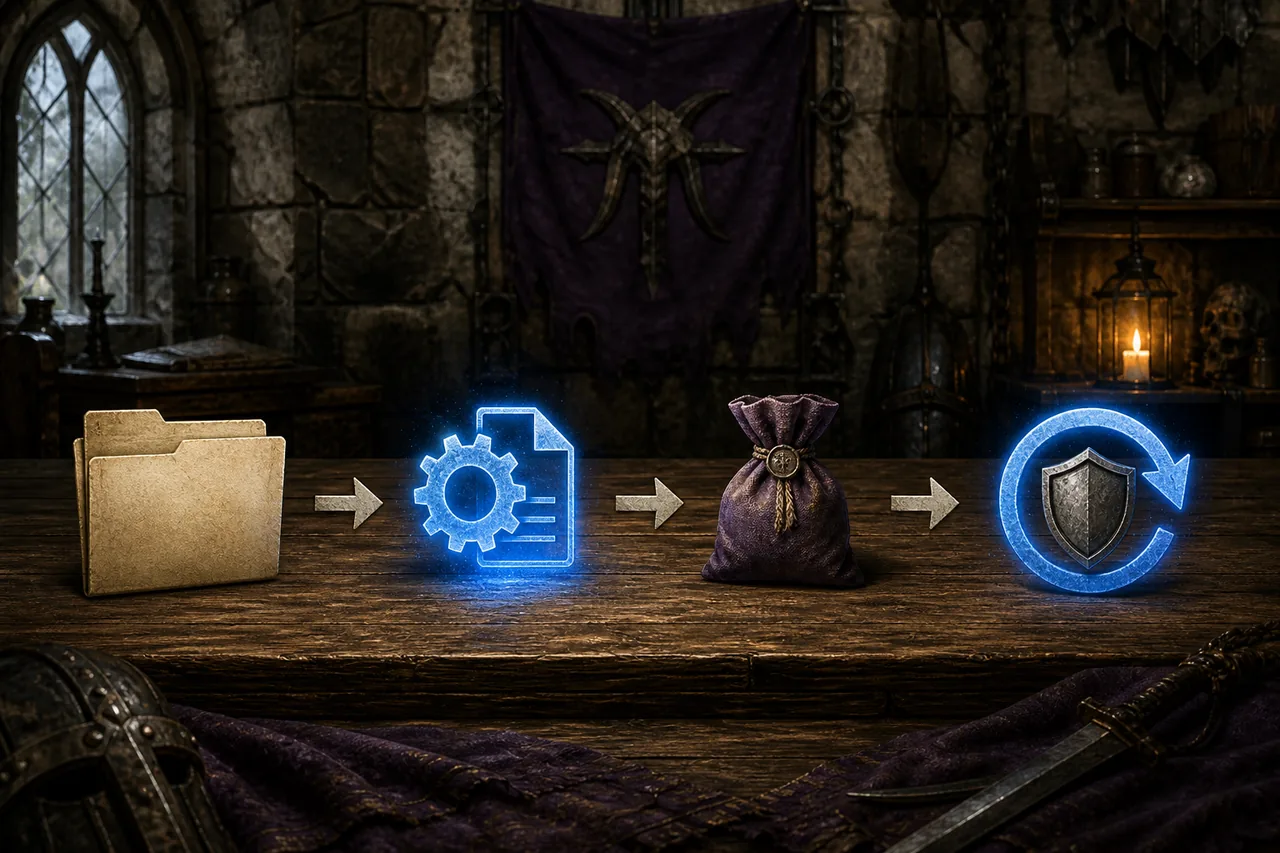
Verify the source and compatible build before downloading
Begin at the current project source, not at a repacked archive or an old tutorial. The official RE-UE4SS repository and its release page explain the distinction between normal, developer, and experimental builds. The G1L project source is a separate author-maintained workflow. A project page can be useful evidence, but a version number from a search snippet is not proof that the same files still support your current game build.
For Gothic 1 Remake, the practical question is not simply “is UE4SS installed?” It is “does this exact mod require this exact loader build, and does the loader sit beside the executable that launches the game?” Read the release notes, requirements, archive layout, and known issues before extracting anything. If the author names an experimental build or a specific plugin, preserve that wording in your installation receipt. If no current source explains compatibility, stop and use a safer mod or wait for a maintained release instead of guessing.
- Prefer the official project repository or a concrete author project page over a generic download directory.
- Record the release page, file name, date checked, game build, and required plugins before extraction.
- Do not call a file safe merely because it is popular, mirrored often, or linked by a search result.
- Keep stable, developer, and experimental packages separate; never overwrite a working profile without a backup.
Install Gothic 1 Remake UE4SS on a clean profile
The exact path belongs to the current release instructions. Community guides commonly point to the executable area under a Gothic 1 Remake installation, often a path ending in G1R/Binaries/Win64, but that is a verification clue rather than a universal promise. Find the folder that contains the executable used by your installation, compare it with the author example, and watch for an extra archive-named nesting level. The Steam library root alone is not enough evidence that the files are in the right place.
Install only the framework needed for the first test. Close the game, back up saves using the save-location guide, copy the original configuration if the author recommends it, and extract the archive outside the game directory so you can inspect its top-level folders. Do not combine a new UE4SS package, a BP loader, a console enabler, and several content mods in one step. If the loader fails, a single dependency gives you a useful boundary; five changed layers give you a cleanup project.
- 1Start from a clean test state
Launch the unmodded game once, confirm that a normal save loads, and close it before changing files.
- 2Read the current archive layout
Extract to a temporary folder and compare the top-level folders with the author instructions; stop if an extra nesting level appears.
- 3Place one loader only
Use the executable-relative destination documented for that release and do not mix old files from another loader profile.
- 4Launch before adding content
Check the game start, menu, and any documented loader signal before installing a gameplay or visual mod.
- 5Record and test one mod
Add one requirement-matched mod, load a copied save, reproduce its expected change, then save to a new slot and restart.
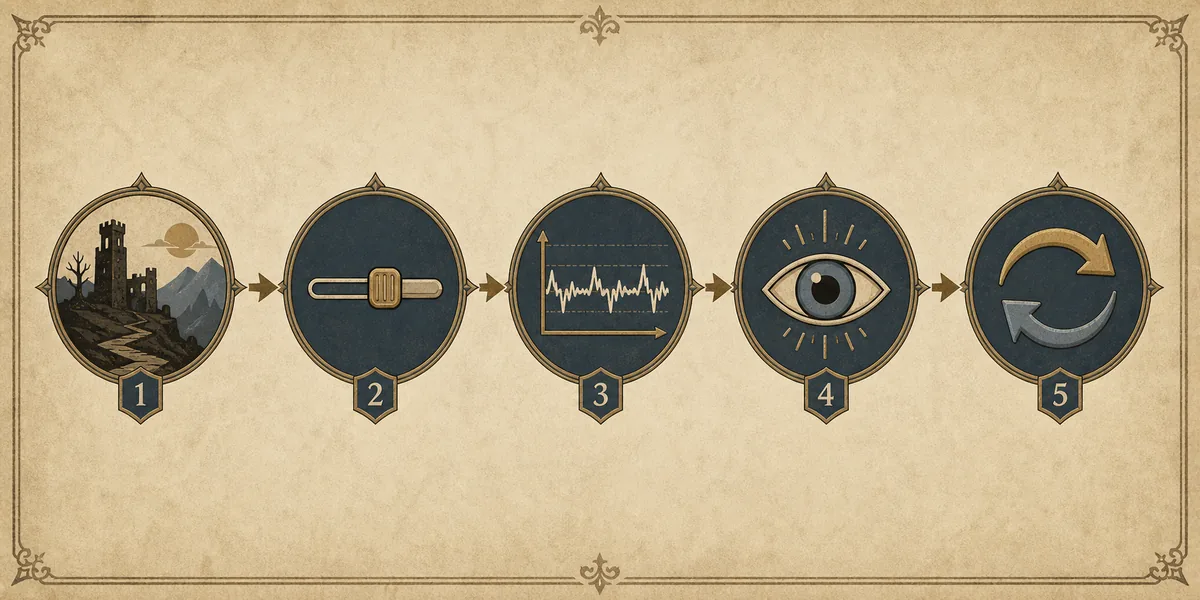
UE4SS crashes, the console is blank, or mods do not load
If the game crashes before the menu, remove the newest layer first and return to the clean profile. Check the executable path, archive nesting, required runtime files, duplicate loaders, and whether the package was built for the same game version. If the menu opens but a plugin or console does nothing, confirm that the framework actually loaded, that the plugin is in the directory named by its author, and that you are not testing a command tool without its required enabler. A file named UE4SS.dll in an arbitrary folder is not a complete diagnosis.
A Vortex deployment can also hide the real file location. Purge or disable the profile only after recording what Vortex changed, then compare the deployed result with the author's manual path. The Vortex guide covers profiles and deployment, while Mods Not Working helps separate a loader failure from a broken save, missing dependency, or damaged base game. For console-related tests, use a copied save and follow the safer command workflow in the console guide.
When a fix works, write down the exact game build, loader release, plugin, path, and test scene. When it fails, preserve the failed profile before deleting files. That record prevents a later update from turning a one-file rollback into a blind reinstall and helps the project author reproduce the problem.
- Game crashes before the menu: remove the newest loader or plugin, then verify the clean game first.
- Console opens but commands do nothing: check the console enabler, plugin path, permissions, and required framework build.
- A mod appears ignored: compare archive nesting, deployment state, and the author's expected test location.
- The problem starts after an update: repeat the clean baseline before restoring an older loader profile.
- A save will not load: preserve it, test a copy on the clean game, and avoid saving over the only evidence.
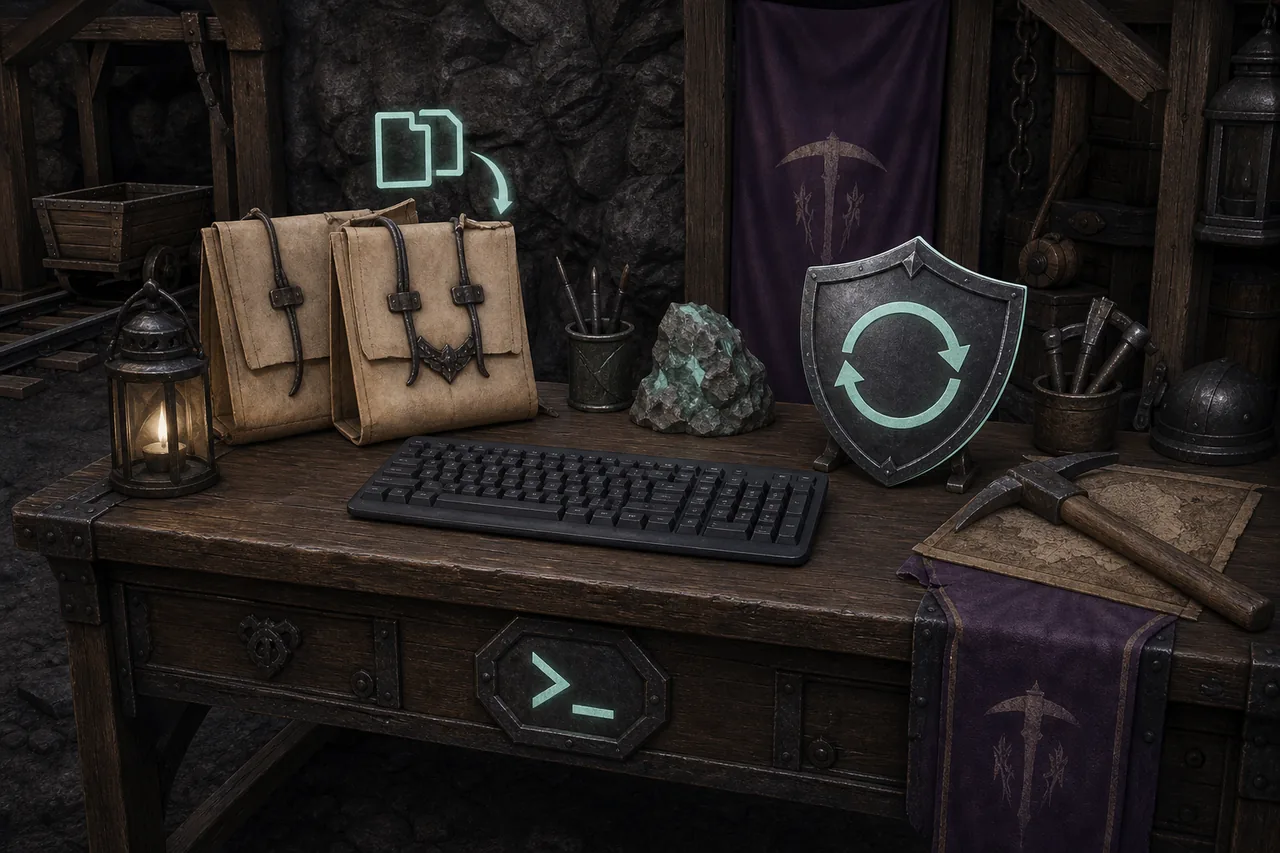
UE4SS vs BP Mod Loader, G1L, and Vortex
These tools can appear together in search results because they occupy different layers of the modding workflow. UE4SS is a general framework used by some plugins and scripts. BP Mod Loader and a console-enabler package are concrete projects with their own files and requirements. G1L is a separate tool/profile project that may manage backups, plugins, and supported mod workflows. Vortex is a deployment manager. Choosing the one with the largest search volume is not the same as choosing the one required by a specific mod.
Use the comparison below as a routing decision, not as a compatibility guarantee. If a current author page says that a project replaces another loader, follow that project-specific instruction. If it says that two layers are required, install them in the documented order and keep a rollback copy between steps. The site does not host re-packed binaries and does not turn a source page into an official compatibility promise.
| You want to… | Start with… | Do not assume… |
|---|---|---|
| Load a plugin or script that names UE4SS | The exact UE4SS build and author README | The newest general release works for every mod |
| Enable a project-specific console or BP package | The concrete author project and its requirements | A Vortex button can infer the manual dependency |
| Manage profiles and deployment | Vortex documentation and the site's Vortex guide | A deployed archive is compatible just because it is visible |
| Use a supported backup/profile workflow | G1L project notes and release page | G1L is interchangeable with every UE4SS setup |
Gothic 1 Remake UE4SS FAQ
What is UE4SS used for in Gothic 1 Remake?
UE4SS is a framework used by some Gothic 1 Remake plugins, scripts, console tools, and mods. It is not a universal mod manager or a guarantee that an unrelated archive will work. Check the current author requirements and test it as one dependency on a copied save.
Where should Gothic 1 Remake UE4SS be installed?
Use the current release instructions and compare the archive with the executable directory used by your game. Community examples often point to a path ending in G1R/Binaries/Win64, but you should verify the exact build, executable location, and folder nesting instead of copying a path from an old guide.
Can I use UE4SS with Vortex?
Only when the specific mod and loader instructions support that deployment. Vortex manages staging and deployment, but it cannot infer an unsupported UE4SS package or repair an incorrect manual path. Record the profile, deploy one change, and compare the result with the author instructions.
What should I do if UE4SS crashes or a mod is ignored?
Return to the clean game, remove the newest loader or plugin, check the executable path and archive nesting, confirm the required build, and test one dependency at a time. Preserve saves and the failed profile before deleting files, then use the Mods Not Working checklist for the remaining boundary.
Sources and verification notes
- RE-UE4SS official repository — Official framework source and documentation checked for build types and project scope.
- RE-UE4SS official releases — Current release page used as the stable/developer/experimental source rather than a repacked mirror.
- G1L project source and releases — Separate author-maintained tool and profile source checked for UE4SS, plugins, backups, and diagnostics context.
- Myrtana UE4SS project page — Concrete project context; verify the author's current file requirements before use.
- Myrtana BP Mod Loader and Console Enabler — Concrete alternative project checked for the loader and console-enabler keyword cluster; it is not a generic download directory.
- Community UE4SS installation example — Community evidence for the executable-relative folder discussion; it is not an official compatibility guarantee.